
How to Combine Multiple Excel Sheets into One Table (Formulas vs Power Query)
Learn how to combine multiple Excel sheets into one master table using formulas and Power Query. Compare methods and choose the scalable approach.
Mark Handler CA(SA)
6 min read
How to Combine Multiple Excel Sheets into One Master Table (Formulas vs Power Query)
Download the example file to follow along
If you build reports, dashboards, or financial models in Excel, you will eventually hit the same wall: the data lives across multiple worksheets, and you need one clean master table.
Most users copy and paste. Some try a quick formula that looks clever but quietly breaks the moment a sheet expands or a new tab gets added. In this StratModExcel walkthrough, I’ll show you five practical methods to combine multiple Excel sheets into one and, more importantly, how to choose the right method based on how often your data changes.
This is Excel data consolidation in the real world: fast when it needs to be, scalable when it must be.
The case study: regional sales sheets (New York, London, Singapore)
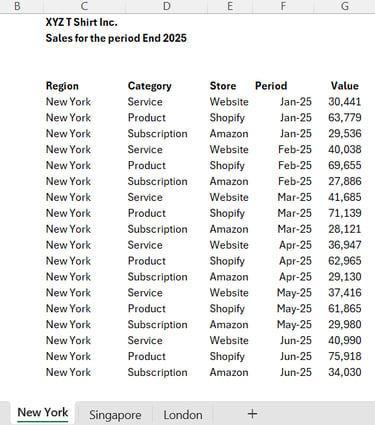
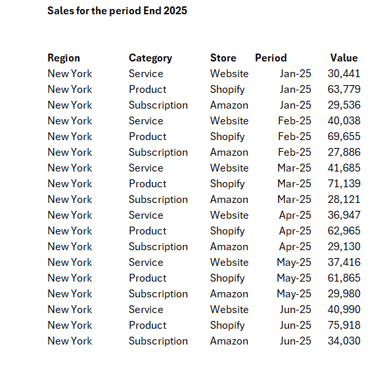
We’ll use a simple but realistic setup: sales data split by region, with New York, London, and Singapore each on their own sheet. Management wants a single combined schedule for analysis, reporting, and dashboards.
This is the exact pattern you’ll see in:
monthly management packs
multi-store or multi-branch reporting
forecast vs actual schedules
dashboard source tables
Method 1: Copy & Paste (fast, but manual)
Let’s start with what most people do.
You select the data on the first sheet, copy it, paste it into a master sheet, then repeat for the next tab.
Shortcut keys to selecting the data:
Control + Shift + Right Arrow PLUS Control + Shift + Down Arrow Key
It “works”… until it doesn’t.
Why this fails for ongoing reporting
Your master sheet is static. If source data updates, the combined schedule does not.
It’s manual and error-prone. The more often you repeat it, the more likely you miss rows, paste in the wrong place, or forget a sheet.
Use this only when the data is truly one-off and frozen.
Method 2: Combine Excel sheets with VSTACK (dynamic arrays)
Excel’s VSTACK gives you a more modern approach:
stack multiple tables vertically into one output.
Simply go to the first sheet "New York" and select Range C6:G23.
Hold down the shift key and select the last sheet "London".
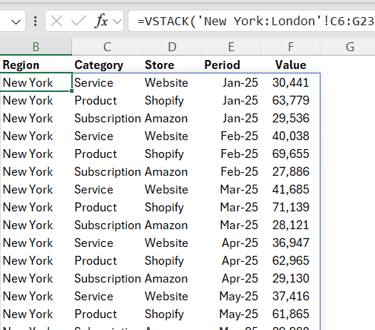
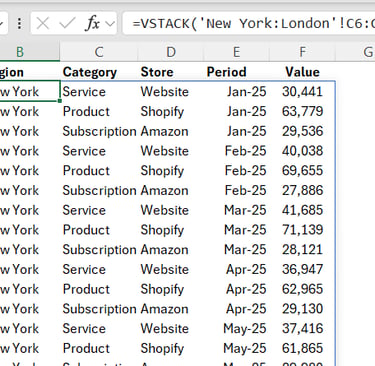
This will give the formula:
=VSTACK('New York:London'!C6:G23)
With a 3D reference (a sheet range like New York:London),
you can pull the same cell range from multiple sheets and
consolidate it in one shot.
The catch
VSTACK behaves nicely only when your source tables are equal
-sized. If one region grows from row 23 to row 50 while the others
stay the same, you import a block of zero rows for the shorter sheets. That’s not just messy, it’s a reporting risk.
Method 3: VSTACK + FILTER (clean, dynamic consolidation)
So we fix the mess: instead of stacking raw tables,
we filter each table before stacking.
This is where FILTER comes in, typically wrapped with:
LET to name the 3D reference once (and keep the formula
readable)
CHOOSECOLS to tell Excel which column to test
(because your data is multi-column)
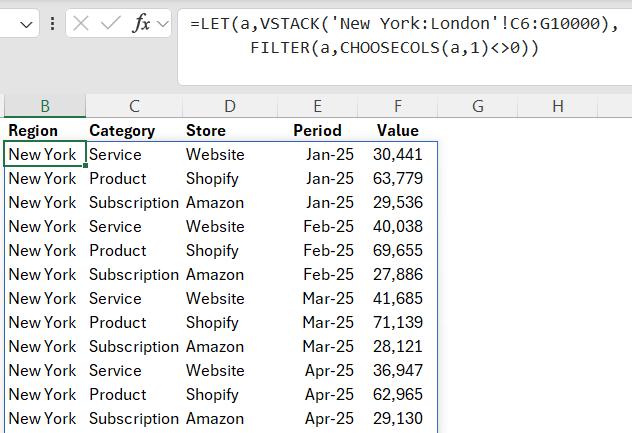
Simply extend the range from C6:G23 to C6:G10000 to allow room
for the data to grow. The insert the below formula:
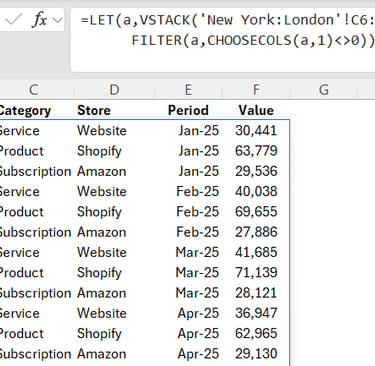
=LET(a,VSTACK('New York:London'!C6:G10000),
FILTER(a,CHOOSECOLS(a,1)<>0))
This approach is powerful because you can:
safely expand ranges (even to thousands of rows)
strip out zeros/blanks before consolidation
keep the result fully dynamic
Trade-off
You’re now using a multi-function formula chain. It’s effective, but it’s also harder to explain, audit, and maintain, especially when sharing workbooks with colleagues or clients.
Method 4: TOCOL function (the best formula-only option)
If you want a cleaner formula solution, TOCOL is a standout.
Simply enter the following formula in column c: =TOCOL('New York:London'!C6:C10000,1).
The second arguement represents the setting to ignore zeros, with the option 1 selected.
Copy and paste this accoss to columns D to G:
=TOCOL('New York:London'!C6:C10000,1)
=TOCOL('New York:London'!D6:D10000,1)
=TOCOL('New York:London'!E6:E10000,1)
=TOCOL('New York:London'!F6:F10000,1)
=TOCOL('New York:London'!G6:G10000,1)
TOCOL flattens a table into a single column and includes an ignore argument that can remove:
blanks
errors
blanks + errors
This often gives you the simplest formula-based consolidation workflow:
fewer helper functions
less logic
easier troubleshooting
In many cases, TOCOL is the most “beginner-friendly” formula approach that still feels professional.
The hidden issue with 3D references (VSTACK and TOCOL)
Here’s the problem most people discover the hard way:
A 3D reference only includes sheets between your first and last sheet in the reference.
So if you reference New York:London and later add Sydney outside that range, it won’t be included. Your consolidation looks correct, but it’s missing data.
Yes, you can manage this by moving sheets or anchoring the “last sheet” at the end of the workbook, but that introduces ongoing maintenance. In reporting systems, maintenance is where errors breed.
Method 5: Power Query (recommended for scalable reporting)
If you want the cleanest, most scalable way to combine Excel sheets automatically, use Power Query.
Power Query doesn’t behave like a formula. It behaves like a repeatable data pipeline:
it reads all sheets in the workbook
appends them into one dataset
lets you clean headers, remove blanks, fix datatypes
updates everything with Refresh
In the case study, the “TA-DA” moment is simple:
Add a new sheet (Sydney)
Save
Refresh Power Query
Sydney is included automatically
This is why Power Query is the best solution for:
recurring monthly reports
expanding workbooks
models feeding dashboards and pivots
automation-first Excel systems
Compare methods: which one should you use?
Here’s the StratModExcel rule of thumb:
Copy & Paste: only for tiny, one-off tasks with static data
VSTACK: quick consolidation when tables are consistent and fixed-size
VSTACK + FILTER: strong dynamic option, but formula-heavy
TOCOL: best formula-only solution for clean, simple consolidation
Power Query: best overall for scalable, refresh-based reporting automation
Or even simpler:
If the data changes once, formulas can work.
If the data changes every month, Power Query wins!!!
Advanced scenarios (what we’ll cover next)
Once you understand this workflow, the next steps are where Excel becomes a real reporting engine:
combining multiple workbooks into one master dataset
unpivoting wide tables into a proper normalized structure
building dashboards from Power Query outputs (stable inputs, clean models)
Wrap-up
Combining multiple Excel sheets into one master table is a foundational skill for analysts, finance teams, and operators. Start with formulas when you need speed. Move to Power Query when you need reliability.
If you’re building repeatable reporting systems, Power Query is the method that scales with you.
Frequently Asked Questions (FAQ)
What is the best way to combine multiple Excel sheets into one?
If your data is static and used once, simple formula methods like VSTACK or TOCOL may be sufficient. If your data changes regularly, grows over time, or feeds dashboards and reports, Power Query is the most reliable and scalable solution.
Can I combine Excel sheets automatically without copy and paste?
Yes. Both Excel formulas (VSTACK, TOCOL) and Power Query allow you to combine sheets automatically. Among these, Power Query offers the most robust automation because it updates with a simple refresh and includes newly added sheets automatically.
Why does Excel sometimes include blank rows or zeros when combining sheets?
This typically happens when combining sheets with different table sizes, especially when using 3D references with VSTACK. Excel fills missing rows with zeros. Filtering or using TOCOL can reduce this issue, but Power Query avoids it entirely.
What is the limitation of using 3D references in Excel?
3D references only include sheets between the first and last sheet in the reference. If a new sheet is added outside that range, it will not be included automatically. This affects VSTACK, VSTACK + FILTER, and TOCOL solutions.
Is TOCOL better than VSTACK for combining Excel sheets?
TOCOL is generally simpler and cleaner than VSTACK because it has built-in options to ignore blanks and errors. However, both functions share the same limitation when using 3D references and do not automatically include newly added sheets.
Can Power Query combine sheets from multiple workbooks?
Yes. Power Query is especially strong at combining data from multiple Excel workbooks, not just sheets within a single file. This makes it ideal for folder-based reporting, monthly files, and multi-entity reporting systems.
Do I need advanced Excel skills to use Power Query?
No. While Power Query introduces a new interface, the core workflow is largely menu-driven. For most consolidation tasks, you don’t need to write any code, and the setup is often simpler than maintaining complex formulas.
Should finance and accounting teams use formulas or Power Query?
For finance and accounting workflows that involve recurring reports, forecasts, dashboards, or audit trails, Power Query is strongly recommended. It produces more stable inputs and reduces the risk of silent formula errors.
When do Excel formulas still make sense for consolidation?
Formulas work well for:
Small, fixed datasets
One-off analysis
Lightweight models where sheet structures will not change
As soon as scale or repetition enters the picture, Power Query becomes the safer choice.

Resources
Explore financial models, templates, and tutorials today.
Support
Contact
© 2025. All rights reserved.